
How to Use Flicker with WEEX to Review Crypto Trades

 Prefer us on Google


Flicker works with WEEX by reading WEEX market data so a trader can review a crypto trade before placing it, and it never places trades. In Flicker, a coin's chart can be set to WEEX prices, and Flicker then shows a Buy, Hold or Sell verdict with price zones that include a stop and a first target. A trader can also connect a WEEX account with a read-only API key to see balances and positions in Flicker, and any order is still placed on WEEX.
Before a trade, it helps to know what could change the decision. Flicker explains its verdict by showing how many market factors agree with it, and its zones mark where a setup would stop making sense and where profit might be taken. Those details give a trader something concrete to compare with their own plan on WEEX.
Key Takeaways
- Analysis only: Flicker shows verdicts, zones and, if connected, account information from WEEX, and it does not place orders.
- Verdicts come from market data: a Sell verdict cannot be changed to Buy by hand, and results change with market conditions, assets and chart periods.
- Read-only access: a WEEX API key for Flicker should have trading, transfer and withdrawal permissions turned off.
- New-user offer: eligible new WEEX users who register through Flicker's link can claim 30 days of Flicker Pro, subject to the offer's terms.
What Is Flicker, and How Does It Work With WEEX?
Flicker is a market-analysis app available on iOS, Android and the web. It reads market conditions for crypto, stock and forex assets and gives a Buy, Hold or Sell verdict, with entry, stop and target zones. Flicker describes itself as an app where the user decides and Flicker never trades for the user.
Flicker can be started for free. The free version shows the full daily analysis for any coin or stock and includes alerts and portfolio tracking, with limits on usage or features, and Flicker Pro removes those limits.
The WEEX connection has two parts. The first is market data: on a coin's chart, a trader can select WEEX as the market, and Flicker uses WEEX's available prices to draw the chart and its zones. Flicker supports WEEX spot and perpetual futures markets, with chart periods from 3 minutes to 1 month. The second part is optional account access, where a trader connects a WEEX account with a read-only API key and sees account information inside Flicker. Neither part sends an order to WEEX.
Why Review a Crypto Trade Before Placing It?
A trade plan has more than an entry price. A trader also needs to know where the setup would no longer make sense and where profit might be taken, and those decisions feel harder to make after the price has moved against the position.
Writing the stop and the target down before entering turns them into a plan and not a reaction. It also makes the size of the trade easier to judge, because the distance to the stop shows how much is at risk. This kind of review does not predict what the price will do. It checks whether a setup fits a plan the trader already has.
What Does Flicker's Market Overview Show?
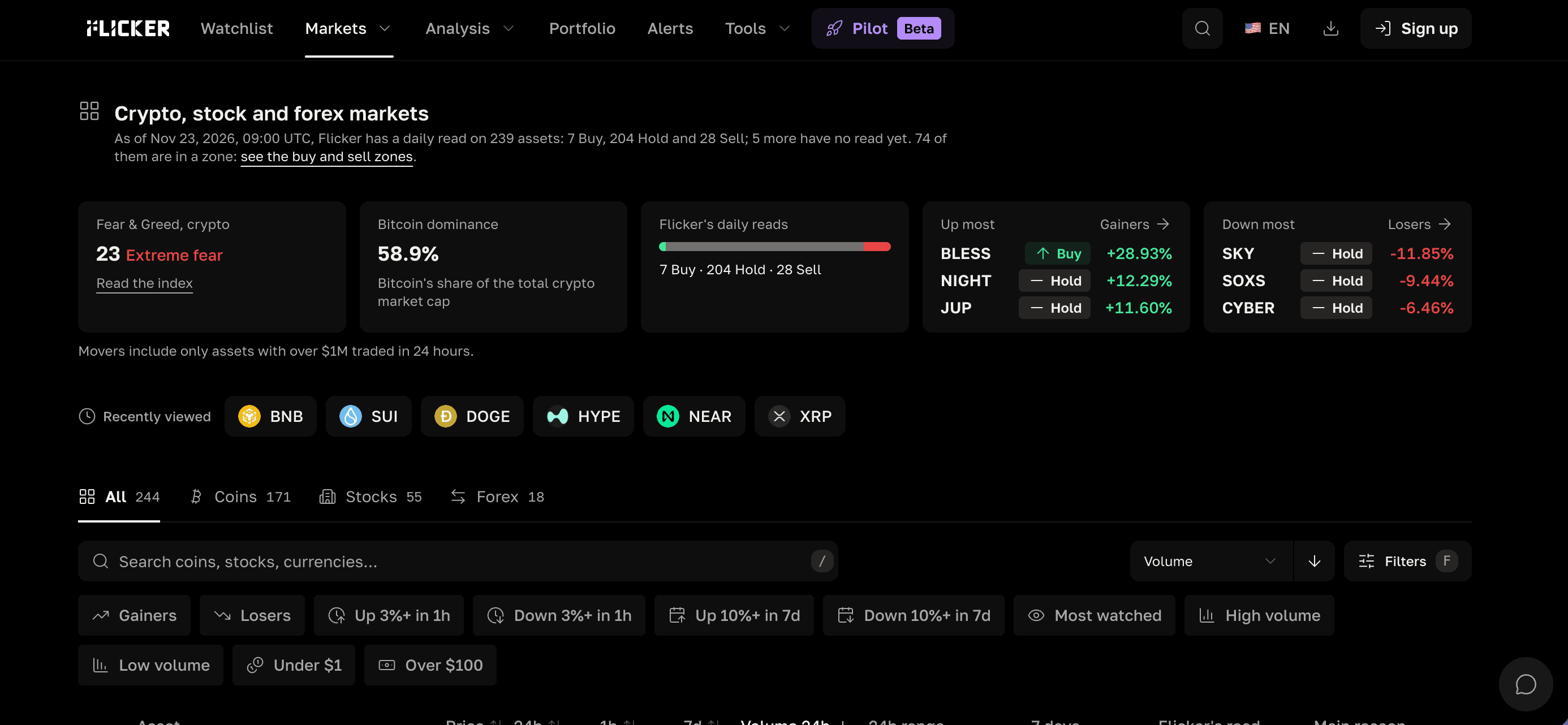
Flicker's market overview brings together crypto, stock and forex markets. A user can browse assets, search for a market and see Flicker's current daily reads, and the available overview may change as market data updates.
For a specific asset, Flicker shows its current verdict and related price zones. The asset page is where the review of a possible trade starts.
-- Price
How Does Flicker Reach a Buy, Hold or Sell Verdict?
Flicker's verdict is based on factors such as trend direction, momentum, cycle phase, Fear & Greed, breakout setup and risk level. Flicker also shows how many of these factors agree with its current read, so a verdict that most factors support looks different from one that only some do.
The verdict and zones are generated from market data. They are not settings, so a Sell verdict cannot be switched to Buy by hand. Market conditions change, and the result can change over time, between assets and between chart periods.
A verdict is best read as a summary of conditions at a moment, together with the factors behind it. The explanation matters more than the label, because it shows what would have to change for the verdict to change.
How Do You Read Flicker's Price Zones?
A Buy zone is generally below the current price, and a Sell zone is generally above it. Each zone can include a stop, a first target and a reward-to-risk ratio, and the exact values depend on the asset and the market.
The reward-to-risk ratio compares the distance to the target with the distance to the stop. As a hypothetical illustration, not a Flicker output, a zone with an entry near 100, a stop at 95 and a first target at 110 would risk 5 to reach a reward of 10, which is a ratio of 2 to 1. A higher ratio means the target is farther away than the stop, and it says nothing about how likely the target is to be reached.
The stop marks where the setup is no longer valid. A trader who would not accept a loss at that level may want to change the size of the position or skip the setup.
How Do You Review a Bitcoin Trade Using WEEX Prices?
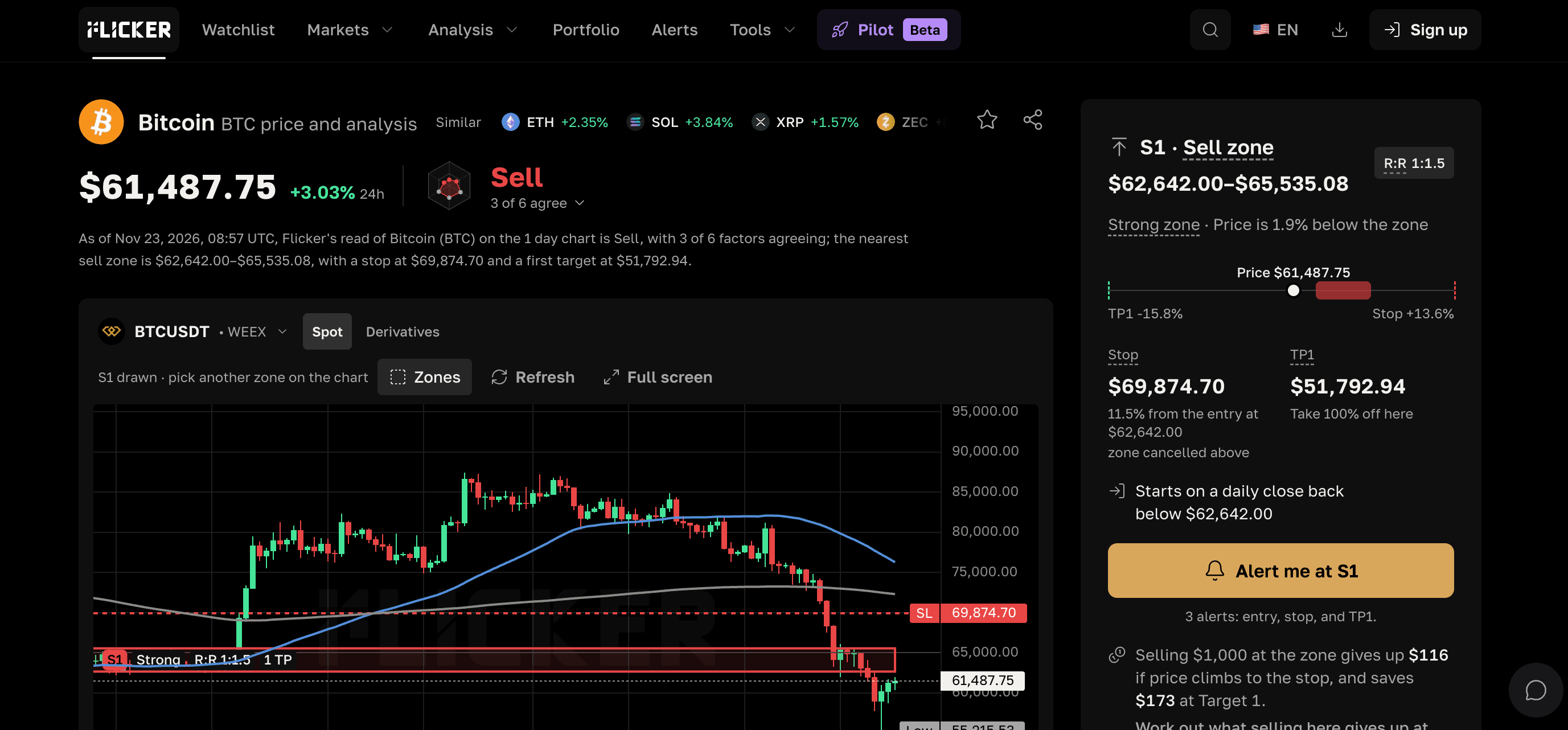
On a coin's chart, a user can choose a market such as WEEX, and Flicker then uses that market's available prices to display the chart and its zones. The screenshot below shows BTCUSDT Spot with WEEX selected. In this example, Flicker's current read is Sell, and the selected zone is a Sell zone.
The chart is a way to review the signal and not an instruction to open a position. A trader can check the zone, the stop, the target and the reasoning behind the verdict, then ask three questions before acting on WEEX: does the setup fit my own plan, am I comfortable with the loss at the stop, and what would make me skip it. Viewing a zone or using the chart does not place a trade, and the same page can show a different verdict at another time.
How Do You Connect WEEX to Flicker With a Read-Only API Key?
Connecting a WEEX account is optional. A user who connects can see account information in Flicker through a read-only API key. Depending on what WEEX makes available, this can include balances, open futures positions, entry prices, unrealized profit and loss, trade history, and existing stop-loss or take-profit orders.
The setup follows these steps, and the screens can differ by version:
- In Flicker, open the Connect an exchange page and follow its instructions for WEEX.
- In WEEX, open API management (in the WEEX App, it is in the profile menu) and create a new API key.
- Give the key a label, set a passphrase and choose read-only permission. A third-party integration guide for WEEX describes the same sequence and a security verification step before the key is shown.
- Check that trading, transfer and withdrawal permissions are turned off.
- Optionally, restrict the key to Flicker's IP address in WEEX, so the key works only from that address. The key can also be deleted in WEEX at any time.
- Copy the key details into Flicker as its instructions say, then check that balances and positions appear.
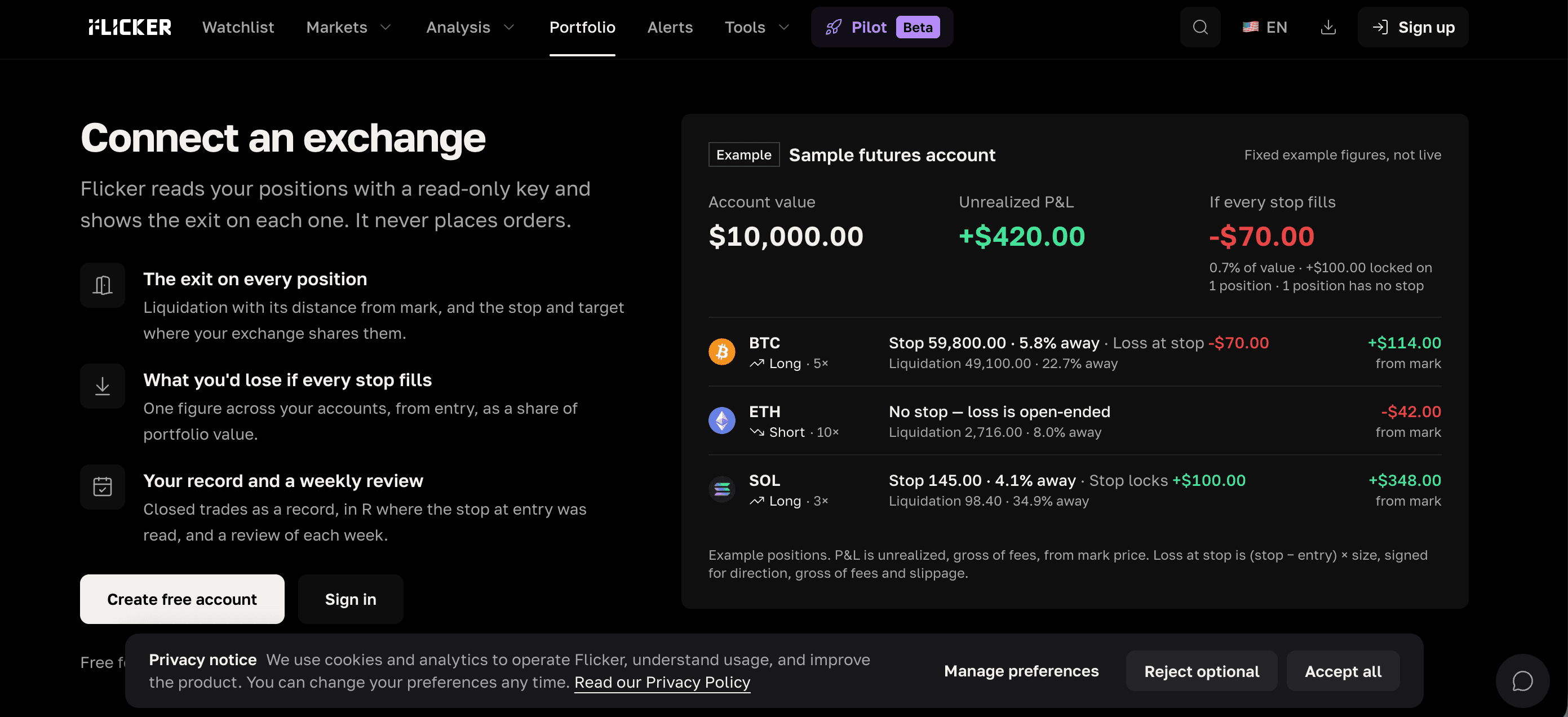
With a connection, Flicker can also show how far each position is from liquidation, what would be lost if every stop fills, and a record and weekly review of closed trades. The key should be treated like a password, because anyone who holds it can view the account information it permits.
What Are the Limits of Using Flicker With WEEX?
Flicker does not place, change or cancel orders, and a read-only key could not do so even if Flicker tried. A verdict is a reading of conditions and not a promise about the next move, and it can change as conditions change.
Futures positions carry additional risk, because they can lose value faster than the underlying price moves. A zone or a ratio from any tool does not remove that risk. A trader who uses Flicker should size positions to what they can afford to lose, and should compare the zone with their own rules before acting on WEEX.
Flicker's analysis also depends on the market data it can see. A chart set to WEEX prices uses that market's available data, and the figures in the screenshots here are examples captured at one moment.
How Can New Users Claim 30 Days of Flicker Pro Through WEEX?
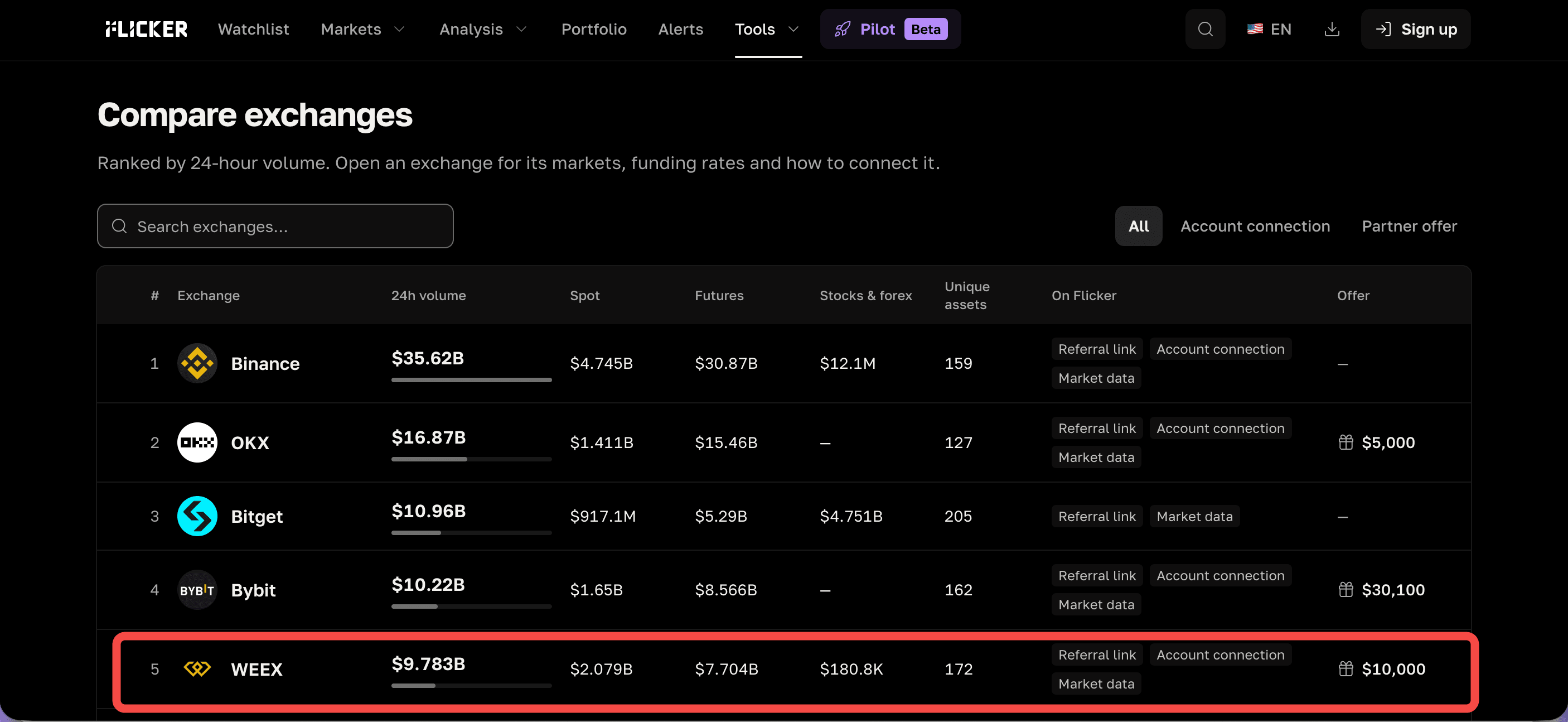
Flicker's WEEX page shows information about the exchange, including supported market data and a partner offer for new users. Trading figures on that page can change, and any WEEX sign-up rewards are subject to WEEX's eligibility requirements and terms.
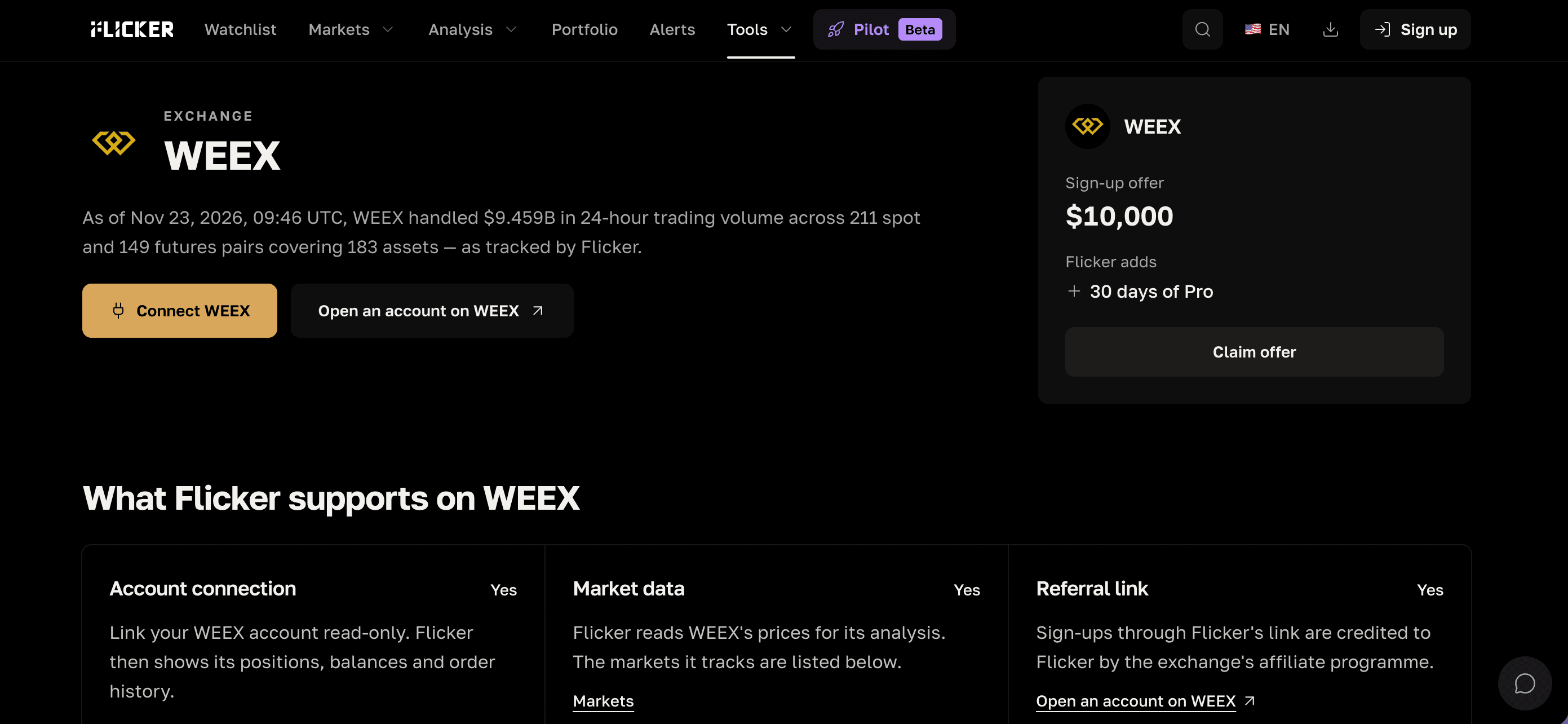
Eligible new WEEX users who register through Flicker's link can claim 30 days of Flicker Pro. The steps are to register through the link, copy the WEEX UID, and submit it in the Promotions area of Flicker under WEEX. Flicker checks the registration with WEEX before adding the Pro period.
How Can You Get Started With Flicker and WEEX?
Flicker is available on iOS, Android and the web, and it can be started for free on iOS and Android.
- App Store: https://apps.apple.com/app/id6627346863
- Google Play: https://play.google.com/store/apps/details?id=com.flicker.mobile
- Web: https://flicker.finance
- Register for WEEX through Flicker's link: https://www.weex.com/en/register?vipCode=flicker
Conclusion
Flicker helps a trader review market signals and price zones before deciding whether to trade. With WEEX selected, the chart uses WEEX market prices, and a connected account can show balances and positions in a read-only view. The API key should have trading, transfer and withdrawal permissions turned off.
Flicker provides analysis and account information, and the trading decisions are made on WEEX by the trader. A verdict can change with the market, so the zone, the stop and the reasoning are worth rechecking before any order is placed.
FAQ
1. Is Flicker free?
Flicker can be started for free. The free version shows the full daily analysis for any coin or stock and includes alerts and portfolio tracking, with limits on usage or features. Flicker Pro removes those limits, and new WEEX users can claim 30 days of Pro by following the steps above.
2. Does Flicker place trades for me?
No. Flicker analyzes the market and shows the reasoning behind its verdict, but it does not place orders, copy trades or hold funds. All trading decisions are made by the user on WEEX.
3. Is it safe to connect a WEEX account to Flicker?
Flicker asks only for a read-only API key, which can view balances, positions and orders but cannot trade or withdraw. The key can be restricted to Flicker's IP address and deleted in WEEX at any time.
4. Which WEEX markets does Flicker support?
Flicker supports WEEX spot and perpetual futures markets, with chart periods from 3 minutes to 1 month.
5. How can a new WEEX user claim 30 days of Flicker Pro?
Register through Flicker's WEEX link, copy your WEEX UID, submit it in Flicker's Promotions area under WEEX and wait for the registration check. Eligibility and WEEX rewards are subject to the applicable terms.
This content is provided for general informational purposes only and doesn't constitute financial, investment, legal, or tax advice. Any events, rewards, online promotions, or related information mentioned herein should not be considered a recommendation, solicitation, or invitation to purchase, sell, trade, or otherwise deal in any crypto assets. Crypto assets are highly volatile and may result in loss. The availability of WEEX services, products, and related events may vary by region. You are responsible for ensuring that your participation is in accordance with applicable local laws and regulations.
You may also like
View moreWEEX Elite Trader Support: Exposure, Levels, Fund and Payouts
Beginner3 minCopy TradingCan You Close a WEEX Copy Trade Early? How to Take Profit Now
Beginner3 minCopy TradingWEEX Copy Trading: Can You Set Your Own Leverage and Stop-Loss?
Beginner3 minCopy TradingHow Copy Trading Platforms Stop Churning and Bag-Holding Traders
Beginner4 minCopy TradingHow to Become a WEEX Elite Trader: Levels, Rules and Profit Share
Beginner3 minWEEX Copy Trading Slippage: How to Set the 0.1% to 1% Limit
Beginner3 min


